
Counter tools
Stamp card
FreeA digital stamp card. The customer’s phone number is the card. Type the number to add a stamp. When a customer has enough stamps, the screen says a reward is due.
Open it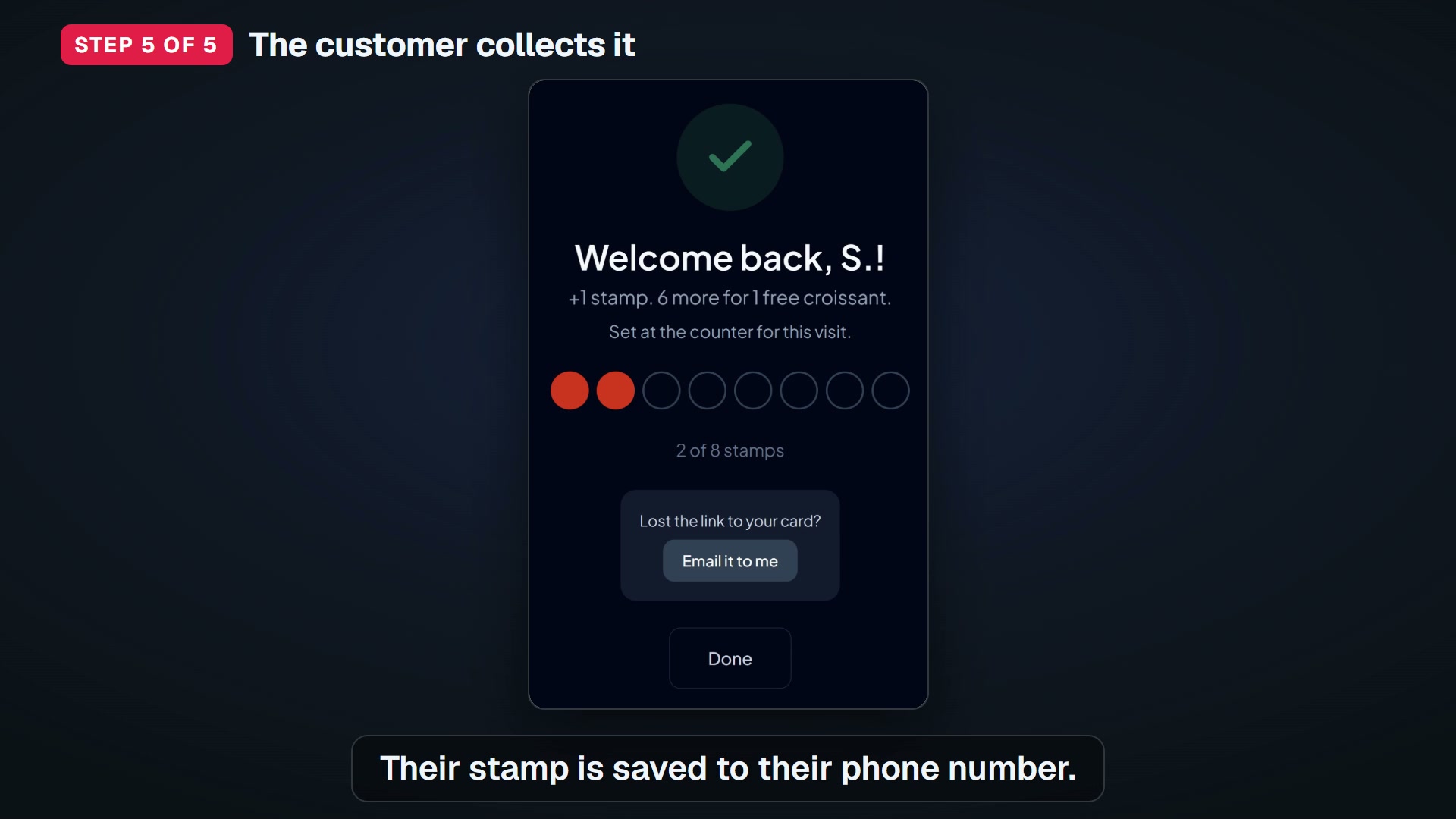
Watch “Your free stamp card at the counter: set up, print and give a stamp” on YouTube
Watch “Redeeming a full stamp card” on YouTube
Watch “How to say sorry to a customer by email: Make it right” on YouTube
How to use it
- Open Stamp card. The counter has two ways to give stamps. Pick one at the top.
- Under the list, What your stamp card leads to shows what the card brings you. It is for the owner and managers, not the counter.
- Free: your card on the customer’s phone and the Google review request (AUTO). PRO: win-back, welcome, birthday, almost-there and rainy-day emails (AUTO), plus slow-day emails you press Send for.
- Customer scans (the usual way): set how many stamps this sale earns with the − and + buttons, then press Ready for the next customer. Ask the customer to scan the poster and type their number. They collect exactly those stamps. The screen shows who collected them, then resets for the next sale.
- In bill-amount mode, typing the bill proposes one stamp per set amount, but never more than one full card for a single sale: a bill worth 40 stamps on a 10-stamp card proposes 10. If you really mean more, change the number by hand and that number is kept.
- A shift note shows at the top of this screen too, so whoever is stamping sees it. It is a card, not a pop-up, so it never covers the keypad or the phone box.
- The note waits while a number is half typed, and stays until somebody presses Got it. Several notes share one card that says 1 of 3.
- A second counter screen shows the stamps you set within seconds, with no reload. It clears them when you cancel.
- While it waits, the screen counts down the time left, like “Waiting for the scan · 9:41”. A scan shows here within seconds.
- If the live signal cannot get through, the screen checks every 20 seconds until it can.
- Under Ready for the next customer, one line gives the other way: pair a tablet once in Settings, and it gives stamps on its own. No Ready needed.
- On a locked tablet that line is hidden, because pairing is done in Settings. Set up a tablet shows there instead, folded under the same button.
- Set up a tablet makes a one-time setup link for the kiosk tablet, if you allow counter staff to pair tablets. If you do not, it says the tablet is in Counter mode (see Counter Mode).
- Type the number (for a regular you know, or a customer without their phone): tap the number on the keypad, set the stamps with − and +, and press Give stamps. The number clears at once, so you can type the next one. If the stamp is refused, the number comes back.
- The result shows above the keypad: “Stamp given · 3 of 8”. When that stamp fills the card, it says “Card full · 1 free croissant ready” instead.
- A full card gives the reward and starts the count again at 0. Customers and Rewards ready at the top update straight away. Rewards ready counts rewards waiting to be handed over.
- How many visits earn a reward, and what the reward is, are set on the Counter poster screen, where they print. The kiosk and the counter use the same numbers.
- The whole screen opens at once: the keypad, the list, the badges and the figures.
- Three figures sit above the list: Customers, Back this month and Rewards ready. On a computer or a landscape tablet (1024 pixels wide or more), they step aside while Type the number is open; pick Customer scans and they come back. On a phone they always show.
- All three count your whole card, not just the 500 rows in the table. Back this month starts again at midnight, your shop’s time.
- Rewards ready turns your brand color when it is not zero: it is the one you can act on today. A shop with no town set sees no Back this month.
- The three figures update when you give a stamp, capture a review or redeem a reward, wherever the screen is open.
- Look at the list of regulars below the counter. The newest are at the top.
- Under it, Your regulars ranks customers by the stamps they collected. Press This week, This month or This year. Free on every plan.
- The line under it says what share of the period’s stamps those names collected. It shows whether your shop has regulars or mostly new faces.
- Slipping away needs at least 2 visits. Someone who came once is a passer-by, and the win-back email never writes to them.
- Change that number on Win-back & birthdays (1 to 20). The tab count, the list and the win-back preview all follow it.
- The list has four groups: Everyone, Regulars, Slipping away and New.
- Slipping away uses your trade’s own window, like 21 days for a cafe or 70 for a hair salon. The win-back email uses the same number.
- Set your trade in Settings. Without one, the window is 30 days.
What it does
- Export all customers (CSV) is at the foot of this screen, under the import, and only the shop’s owner sees it: the file holds every customer’s phone number and email address. It is everybody on your card, including the ones who said no to emails — the email consent column is what tells them apart. It opens in Excel, Numbers or Google Sheets. Before October 2026 this file lived in Settings and carried no byte-order mark, so Excel on Windows showed Chinese and Japanese names as question marks.
- If the number is not finished, Give stamps stays grey and a line under it says so. Until October 2026 it just went grey, with nothing to explain it — at the counter, with a customer waiting.
- Lower down this screen, "Reminders before and after a reward" is where the two paid reminders are set. The reward-ready email on the day a card fills is free on every plan and needs nothing switched on; what the paid plan adds is a nudge when somebody is 1 or 2 stamps away, and a reminder a week later if the reward is still sitting there. You choose how close counts as close — 1, 2 or 3 stamps short, and 2 unless you change it — and you can add one line of your own, printed at the end of the email in your words. A preview under it shows exactly what your customer will read, in their language, with your reward in it. On the free plan you can see all of it, and the PRO badge says it sends on the paid plan.
- The reward itself is not set here. It lives on your Counter poster, because that is where it is printed, and the link under the preview goes straight there.
- Wherever you type it, the reward box takes 35 characters from 28 October 2026 — the Counter poster screen, step 2 of Getting set up, and the box on this screen are one limit, so a reward written on one screen is never too long for another. It was 80. 35 is the longest reward that still fits on the kiosk without the sentence around it being cut, measured in all five languages at the smallest tablet size. A longer one written before that date is still here in full and still saves.
- Stamps set for the next scan go to one customer only: the first to scan and type a number. If nobody scans within 10 minutes, they clear.
- Numbers waiting for a stamp, from 28 October 2026. When somebody the shop already knows types their number at the kiosk before anyone pressed Ready — and the tablet is not one you paired — they are greeted and told to ask at the counter. The number appears at the top of this screen, above the keypad, with Add the stamp beside it. Check it is the person in front of you first: anybody can type any number into a public page, so the number on that card is a claim and the customer standing there is the proof. Pressing Add the stamp gives the stamp and puts them on your customer list, exactly as the keypad does — before you press, they are not on it. The card is not there at all when nobody is waiting, and a number nobody confirms disappears after 24 hours.
- A NEW number is a banner instead, from 28 October 2026. Somebody whose number is not on your card yet is offered the card on the kiosk, and whatever they type — name, email, birthday — arrives here in a box at the top of this screen, above the keypad and the reward code box. On a tablet or a computer it is a form, headed New customer and the last four digits of their number. On a phone it is one line, New and the last four digits with Add details and Not now beside it, and the form opens in place when you press Add details (from 31 October 2026; before that the whole form sat there and pushed the keypad down the screen). On a phone that one line takes a single line of room, so the keypad and the reward code box sit a little lower while somebody is waiting — by the height of that line, not by the whole form. Press Not now and they go back to where they were. It fills itself in while they type, so a customer who walks off with the tablet and finishes on their own phone appears in it as they go. Anything they left blank you can type. Set the stamps for the visit and press Add customer: that is the press that creates them. Before it, they are on nothing. Not now closes it and leaves the number waiting. The box is part of the page, not a pop-up over it. Until 31 October 2026 it was a pop-up that covered the screen, so pressing the reward code box or the keypad with a customer waiting did nothing. Now both stay pressable. On a phone with the form open, scroll down past it to reach them, or press Not now to put it away. If you had already pressed Ready for the next customer, their stamps are already on and the box only asks you to confirm the details — and if they filled in both their name and their email themselves, there is nothing left to ask and no box appears at all. When more than one new customer is waiting, the box is about the one who typed most recently, because that is the person standing in front of you; the list of numbers above works the other way round, oldest first.
- The default is ten stamps for one reward, and the reward starts as a stand-in rather than an answer — “1 free coffee”, or “a free coffee” on shops made before 9 September 2026. Until you replace it, your customers are shown the count and no promise: the stand-in exists so your own form is never blank, not so somebody else’s coffee goes on your card. You can change both in two places — step 1 of Getting set up, and the Counter poster screen. Either one changes the kiosk, the counter and each customer’s own card page, because all of them read the same two settings on your shop.
- There is no register connected, so KANJIN cannot see the bill. Staff decide the stamps for each visit with the − and + buttons. Every visit starts at 1.
- One card at the top, and only one, from 4 November 2026. The waiting-customer banner above shares its place with any other card that wants the top of this screen — a shift note is the next one — so the keypad is never pushed down twice. A customer standing at the counter wins that place; anything else comes back when nobody is waiting. With nobody waiting and nothing to show, there is no empty space held open for it: the keypad sits exactly where it does on a quiet morning.
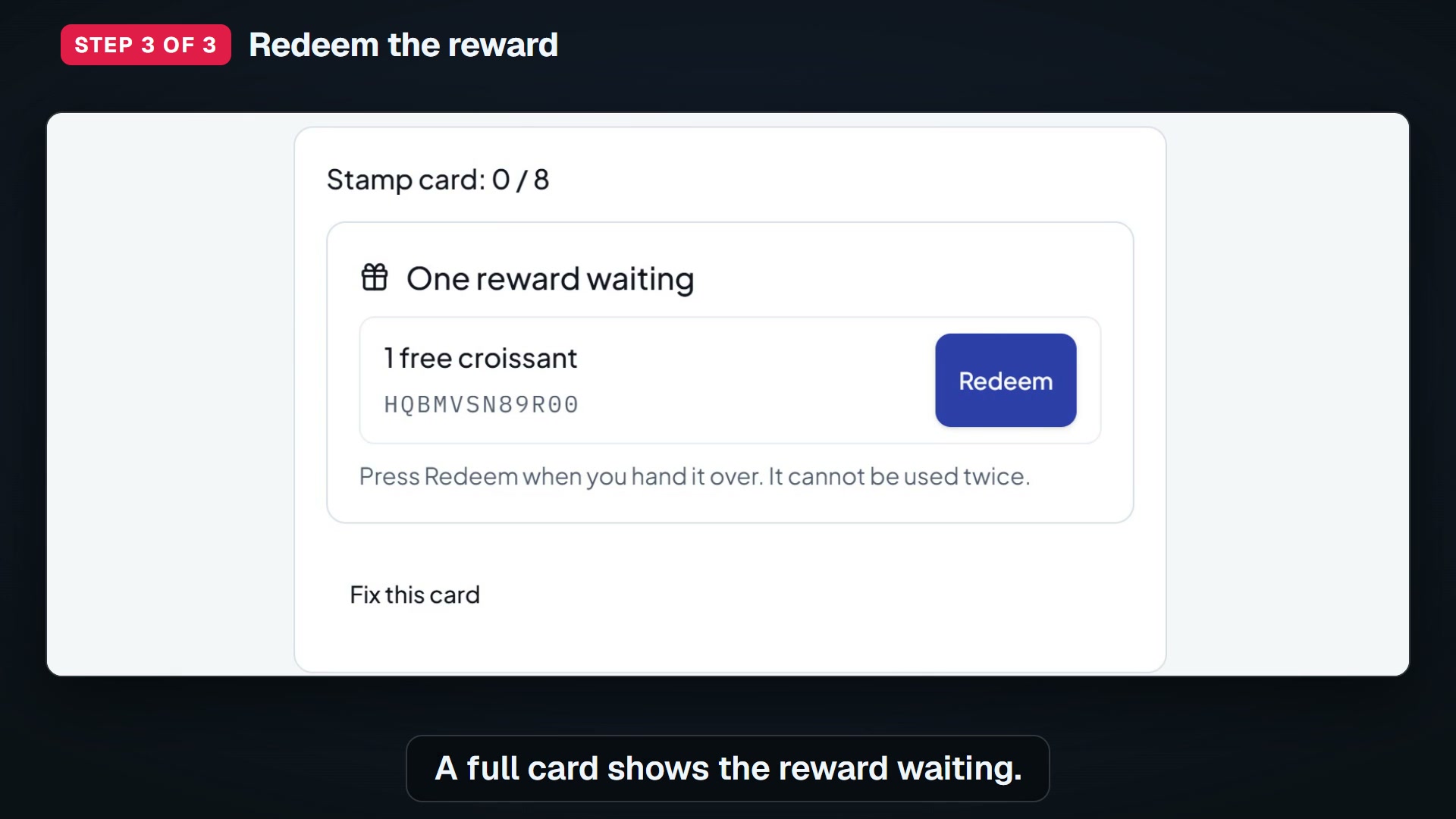
- Type the number, from 5 November 2026 (first-impression owners): on a computer or a tablet held sideways the keypad is on the left and the number, the stamps for this visit, Give stamps and Look up are on the right, so nothing needs a scroll. If the number is wrong for your country, the reason is written directly under the number while the buttons are grey, on every size. Redeeming: type the customer’s number and press Look up, beside Give stamps. Their card appears with the reward under “Rewards waiting” and a Redeem button. Press it as you hand the reward over. Rewards ready at the top of the screen drops as you do, from 26 October 2026; before that it waited for a reload. Look up gives no stamp, which is the point: until October 2026 the only way to reach Redeem was to stamp the card first, so every reward handed over added a stamp nobody had earned.
- If the customer has the email open instead of knowing their number, type the code from their reward email in the “Redeem a reward” box and press Look up. Same card, same button. From 5 November 2026, once “redeemed” is on the screen, a customer who has never been asked for a review is asked then (the receipt goes first). It never holds up the counter, and it follows the Reviews screen’s switch and once-a-year rule.
- A reward cannot be used twice. If somebody has already redeemed it — another register, or earlier in the day — the screen says which day it was handed over instead of letting you press again. A reward past its date cannot be redeemed either: the screen says “This reward expired on” that day. If you look a code up and it has been used, it says “This code was already used on” that day. You can also press Redeem beside the customer in the list.
- Fixing a card: after Look up, press “Fix this card”. Choose Add stamps or Remove stamps, how many, and type why — a missed stamp last Tuesday, a double tap, the four stamps on the paper card they brought in. The reason is required, and every change is kept with your name beside it. Adding the stamp that fills a card earns the reward exactly as a rung-up stamp does; removing stamps never takes back a reward already earned, because the customer has already been told it is theirs. From 29 October 2026, on a tablet locked in Counter Mode a fix can change a card by at most the number of stamps one visit gives in your shop, in either direction, and says so beside the box; to change more, switch back to Manager with your Manager PIN. Every fix made at a locked counter is counted for you, and Today says how many, for example 2 stamp corrections at the counter today. Before that date a locked tablet could change a card by any amount, and nothing said it had been done at the counter.
- A phone number is stored once. Typing it again adds a stamp. It never makes a duplicate.
- Rows carry up to two badges, from 24 October 2026. Reward ready means their card is full and you owe them the reward. “2 more to reward” means they are close, using the same number you set under “Reminders before and after a reward” — so the badge and that email never disagree about the same customer. Slipping away now says how long: “Stopped coming · 26 days”, counted from their last visit, in your trade’s own window.
- The list shows the last four digits of each number, not the whole one, for the sample shop and for your real customers. A counter tablet is readable from the other side of the counter.
- In Counter Mode (see the Counter Mode page) this screen shows the keypad, the stamp stepper, Rewards waiting and Redeem only. The customer list, Your regulars, the card rules and the upgrade notes are hidden until the owner switches back to Manager with the Manager PIN. From 29 October 2026 they are not even sent to a locked tablet: before that they were in the page and only hidden from view, so anybody who looked could read the whole list and the top ten with their numbers. The counter looks one customer up by the number they have just given, which is the job of a counter, and the three figures at the top still show. When the owner switches back to Manager, the list loads straight away. Also from 29 October 2026, the customer count and the back-this-month figure above the keypad are counted by our database for a locked tablet, because a locked tablet is no longer allowed to read the list to count it. They stay right, and they still show no names or numbers.
- Your regulars is for the owner and the manager. Counter staff do not see it: a ranked list of customers with their phone numbers is the office’s business, and the counter already has the one screen it needs.
- The periods are calendar ones, on your shop’s clock — this week from Monday, this month from the 1st, this year from 1 January — and the card prints the dates it is covering, because a week that started this morning otherwise looks like a shop with no customers. It needs your time zone set in Settings; without one it asks for it rather than guessing, since an hour either way moves stamps between months.
- A visit that gave no stamps still counts in the visits column, but it cannot put anybody at the top of a list headed stamps.
- Your customer list is on your account, on every plan. Sign in on the tablet at the counter and the laptop in the office and both show the same list, updated as you stamp. The kiosk, the poster’s code and each customer’s own card page work from the first day. There is no limit on how many customers join, and no setting to switch any of it on.
- A stamp given while the wifi is down is still given. The screen says “Will save”, keeps the stamp, and sends it the moment the connection is back. Nothing waits for a good signal.
- To take an email as well, the Add their email box is under the green card, and under the card you get from Look up. It only appears when you do not already have one for them. From 26 October 2026 it opens by itself rather than waiting to be pressed — asking is the part that gets forgotten in a queue — and you can still fold it away. Type the address, then decide about the tick box: tick it only if you asked them and they said yes to offers. Unticked, the address is used only for their stamp count and reward notes: no review request goes to it, and it is not on your offers list. A line under the box tells your customer what they get for it: their stamp count after each visit and, if they say yes, a note when a reward is ready and your offers. The stamp count is free on every plan; the reward note and your offers go only to customers who said yes, which is the tick box. Until 29 October 2026 the line promised the reward note for the address alone. In a country KANJIN cannot send email from yet, which includes the EU, the box is still there and that line is not, because it would be a promise we could not keep.
- From 21 October 2026 the same box is in Look up as well — the panel you get when somebody asks “have I got any stamps?” without buying anything. It appears on the same rule: only when there is no address on file yet.
- An address already on file is changed from the customer list, not at the counter, and only by an owner or a manager. Open the customer and press Change their email. Changing it turns that customer’s marketing yes off: a yes given for one address is not a yes for another, so they are asked again at the counter. Until 21 October 2026 the counter told staff to change it from the customer list and there was nothing there to press.
- From 6 November 2026 the customer panel does not show the email address, and the page it comes in never holds it either. It says On file, and under that: “Hidden to protect the customer’s privacy. You can replace it, but you can’t read it.” You still see whether they said yes to offers.
- Every email box checks the shape of the address, and from 6 November 2026 it also gives a gentle hint for common slips. Type ana@gmial.com and a line under the box says “Did you mean gmail.com?” with a Use it button. It is only a hint: ignore it and the address saves as typed. It is the same on the kiosk, in the counter’s Add their email box and in Change their email. Nobody can tell from the text whether a mailbox exists, so nothing is checked beyond its shape.
- If an email bounces, KANJIN stops sending to that address for good, in every shop, and takes the address off the card. From 6 November 2026 the panel then says “This email bounced: ask for a new one.” Ask the customer for a working address, then press Change their email. The notice goes as soon as the card has a new address, from any screen. If you type an address that already bounced, the screen says we will not send to it.
- Changing the address also calls off any email already waiting to go to the old one, such as a visit email or a review request, from 6 November 2026. Nothing more goes to the old address.
- Customer lost their phone? From 6 November 2026 this block in the panel says what it does. Get a new card link makes a new link and shows it to you once. Copy it and send it to them yourself, because KANJIN does not email it. Their stamps stay the same. The old link stops working right away, so nobody else can use it.
- Make it right is PRO, marked PRO beside its name, from 6 November 2026. It sends one note, in your own words, to one customer who said yes to emails. It goes only to them, signed with your shop’s name, with your shop’s details, a link to their card and an unsubscribe link, and replies come to your shop’s contact email, and each one is written down: who, when, what, and whether it reached them. Only the owner can send it. The limit is 20 notes a day for the whole shop and one a day to each customer, so one account cannot use it as a way round the weekly limit on offers. A note that fails or bounces does not use up the limit. On the free plan the button is locked, with the upgrade link under it. If the customer has no address, has not said yes to emails or their last email bounced, the button is off and a line says why.
- From 29 October 2026 a test address, such as example.com or anything ending in .test, is never emailed: a customer whose address is one of those still gets the stamp, and the review request is skipped with the reason on the Check-ins screen.
- The review email is queued as soon as the stamp lands. If the tablet loses its connection at that moment, KANJIN notices and queues it within a few minutes, so nobody is missed.
- Busy counter? Turn on Keep ready, under the Arm button. After each customer scans, the counter arms the next stamp by itself with the same number, so nobody has to touch the tablet between sales. It switches itself off thirty minutes after you turned it on, and the line under the switch says so before you turn it on. It changes who presses the tablet and nothing else: the same customer still cannot take two stamps on one visit. From 26 October 2026. From 4 November 2026 it arms the next stamp the moment a scan lands, with exactly the count you last armed (it used to wait eight seconds and could arm a different number), and the line “Name collected N stamps” stays above the waiting card for eight seconds so you still see who it was.
- From 4 November 2026 the section under “The code customers scan” is as wide as the page, with two cards side by side on a laptop (they were squeezed into the counter’s narrow column and cut the link to “https:/”): Open the kiosk on another tablet, and QR code to print. The first card has one control. Copy the link or Show a code to scan makes a one-time link, and opening it on the tablet and pressing Connect this tablet there sets the kiosk up without anybody signing in on it. The kiosk’s own web address is not shown any more, because opening it gave a screen that could not give stamps by itself. Under it, Use this screen as the kiosk opens the kiosk in a new browser tab, from 5 November 2026 (it used to answer with a message that the screen was not available). A shop with two screens drags that tab to the customer’s display; stamps armed at the counter work in it, with no pairing and no sign-in. Making a browser the paired kiosk is on Settings, Tablet. Under the QR code there is a line, “Want a ready-made sign for the counter? Print the poster”, that opens the Counter poster. The PNG is for your own designs, receipts and tables; the poster is the sign. A locked register does not show that link. The figures at the top (customers, back this month, rewards ready) now fill their row whatever number of them there are.
- From 6 November 2026 the number box can never hold the last customer by mistake. Redeeming a reward clears it, and a digit typed into a complete number starts a new number, so Give stamps always goes to the number on the screen. Look up now answers above the keypad, in view, with the number it was for, for example (416) •••-0112.
- From 6 November 2026 Add their email is folded under the green card on a short screen, such as an iPad held sideways, so the keypad stays on screen after every customer. Press it to open it. On a tall screen it is open, as before.
- From 6 November 2026 Give a stamp on the Counter home opens on Type the number, not on the scan screen.
- Handing over a reward has a screen of its own, Find their reward, from 4 November 2026: type the customer’s number, press Look up, and the reward waiting for them is shown with a Redeem button. Nothing on it gives a stamp, so redeeming never adds one that was not earned. Give a stamp instead is at the bottom if you opened it by mistake.
- From 4 November 2026, when you type a number: a number typed with its country code, such as +1 416 555 0028, is read whole (the box used to cut it short and leave Give grey), spaces and dashes are fine, and a number that is not from your shop’s country says so, “This isn’t a Canadian number. Check it, or type it with + and the country code,” instead of asking for more digits. If the same number was stamped less than an hour ago, the result says “Last stamp 12 min ago” with the Undo under it: you can still give the second stamp, because you can see the purchase, but it is no longer silent. Confirmations show a customer’s number as (416) •••-0052, with their first name in front when you have it. Redeeming a reward now answers first and sends the customer’s receipt a moment later, and the regulars list draws “5 minutes ago” after the page has loaded, which stops a rare mismatch error on the counter.
- Wrong number, or pressed twice? Press Undo this stamp under the green card. It takes the stamp back, and if that number had never been in before, it comes off the card as well. You have fifteen minutes. There is one thing it will not do: if the stamp completed a card and the customer has already used the reward, it says so and leaves it alone. If another stamp has been given since and the card is still full after the undo, the reward is issued again under a new code.
- Stamped the same person twice by mistake? Undo the extra one and the review request stays, because it belongs to their visit and not to the stamp. Undo the real one as well and the request is called off, and the Check-ins row says why.
- A review request that could not be sent does not count against the free plan’s twenty a month, from 17 October 2026. The allowance is taken the moment before the email goes, because two registers stamping at once must not both take the twentieth — and if the email is then refused, the request is put back. Before that date a refused address quietly cost a shop one of its twenty, with nothing on any screen saying so. The Check-ins row still shows the failure and its reason.
- Quick tags are notes your staff type on a customer: “Oat milk”, “Prefers mornings”, eight at most. One kind is treated differently. A tag that mentions an allergy is shown in red with a warning triangle, so somebody who was not there when the customer said it still sees it — and it is recognised in the language your shop writes in, not only in English. Only add a health note if the customer asked you to.
PaidWhat the paid plan changes here
The paid plan asks each customer who left an email for an honest Google review after their visit, emails regulars who stop coming, and lets you email up to 1,000 customers at a time without our line at the bottom. (The QR code under the keypad, “Let customers join from their own phone”, is free.) Each visit queues the review email you set up on Google review requests, unless you have switched review requests off there. Rewards are valid for 90 days.
What it costsCommon questions
- A customer does not want to give a phone number.
- Then they do not join. The card is voluntary. There is no other way to identify a customer.
- I gave a stamp to the wrong number.
- Press Undo this stamp under the green card, within fifteen minutes. The stamp, the visit and that visit’s email all go. If the number was new, it comes off your customer list too, so a mis-typed number does not sit there for good. One thing stays: if you stamped the same person twice within the hour, undoing the second stamp leaves the review request the first one earned.
- Can I give a stamp without the customer present?
- Yes. Type their number and press Give stamps. On the free plan there is no record of who pressed it, so keep the tablet with staff you trust.
Related screens
Counter poster
FreeOne sheet you print and stand by the register. The stamp card is the poster. Below a line across the page, when you have them, sit two small panels: a code for a Google review, and your guest Wi-Fi with a code that joins the network.
Kiosk page
FreeThe page a customer reaches by scanning the counter poster, or that you leave open on a tablet you paired. They type their number and get their stamp when staff pressed Ready for the next customer, or on the paired tablet.
The customer’s card
FreeA customer’s own stamp card as a web page: their stamps, the next reward, and the shop’s offer. They reach it from the link in their email. Below the card: your Google review button, if you have one, and how to save the card to the home screen.
Settings
FreeYour numbers live here and nowhere else. Every other screen reads from this page, so you type each figure once.