
Counter tools
Counter poster
FreeOne sheet you print and stand by the register. The stamp card is the poster. Below a line across the page, when you have them, sit two small panels: a code for a Google review, and your guest Wi-Fi with a code that joins the network.
Open it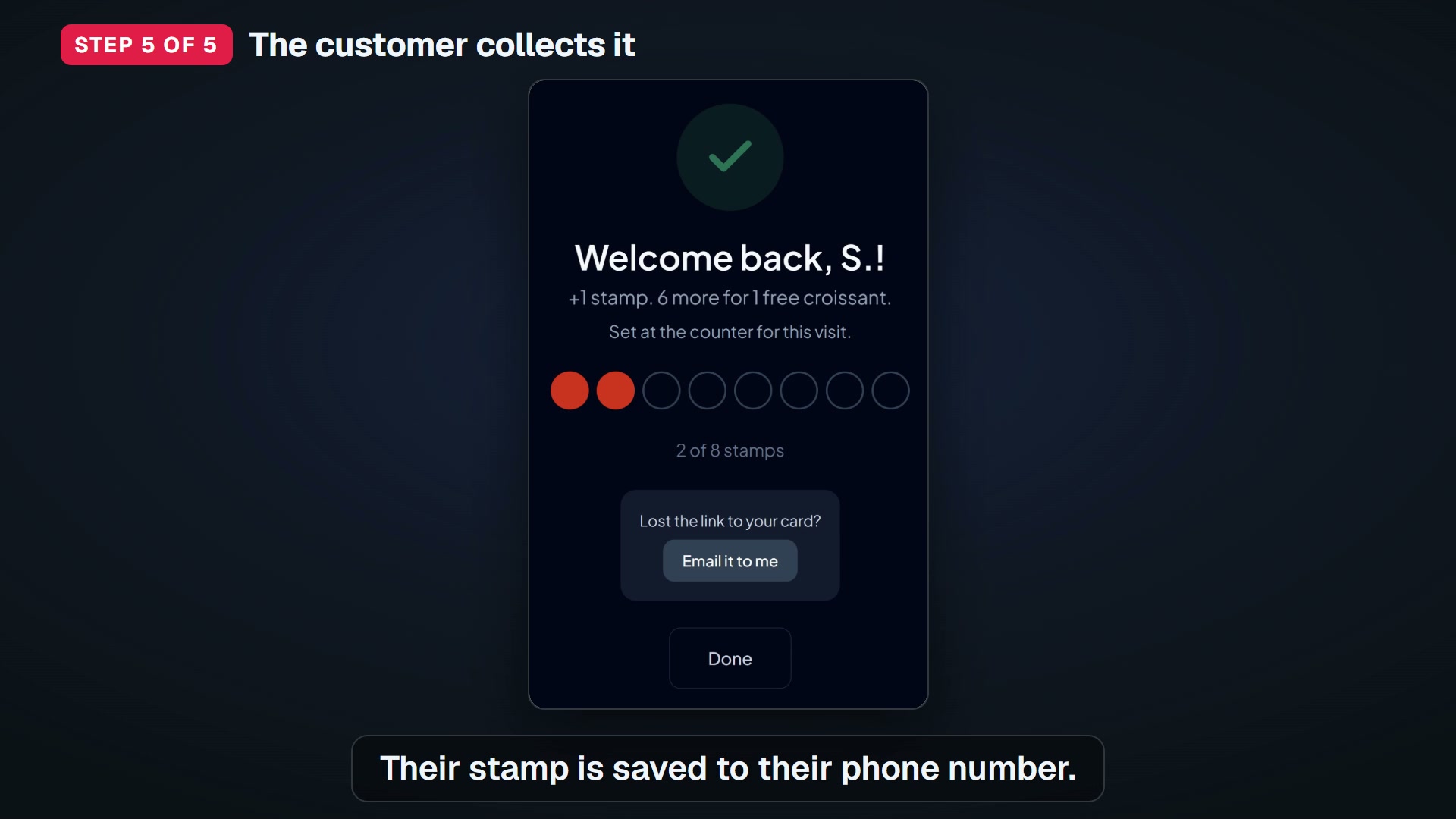
Watch “Your free stamp card at the counter: set up, print and give a stamp” on YouTube
How to use it
- Under the sheet are three buttons: Print the poster, Download the QR code (image) and Open the kiosk on this device. Any one of them finishes the third setup step.
- Download saves the code only, as a PNG for a copy shop or your own designs. To save the whole poster as a file, press Print and choose Save as PDF.
- Open the kiosk on this device turns this device into the kiosk customers use. It opens the plain kiosk address, so it never offers the last customer’s number to the next one.
- The stamp card screen says “Want a ready-made sign for the counter?” under its QR code, with a Print the poster link to this screen. The QR code file is for your own designs; this sheet is ready to print.
- Open Counter poster. The sheet comes first, with Print the poster, Download the QR code (image) and Open the kiosk on this device under it.
- Below them, choose which pieces to print. Your business name, visits for a reward and the reward are filled in from your shop. Change any of them and the sheet follows as you type.
- The reward box takes 35 characters, and a count under it shows how many you have used. The kiosk link is at the foot of the screen, under Kiosk tablet and link.
- On the paid plan there is also a box for the big line on the kiosk page. Press Save the reward, and the kiosk, the counter and the poster all say the same thing. Clear the reward box and the sheet prints without that line: it will not invent a reward your shop has not promised.
- The kiosk line box takes 45 characters. A count under it shows how many you have used, such as “12 of 45 characters”. The line under the count says the kiosk shows the first two lines.
- A longer line saved earlier is kept whole, and you can still edit and save it. The count turns red when a line is past the limit.
- Chinese and Japanese characters are about twice as wide as letters. So 45 of them is too wide, and the tablet shows the first two lines.
- Save the reward is ready to press until you have chosen a reward, even if you change nothing. The box starts with a suggestion. Press Save the reward to keep it as your answer.
- Once a reward is chosen, the button waits for a change and reads Saved until you make one.
- Check the wording. The sheet tells customers to scan when staff say so, or to use the tablet at the counter. It never promises a stamp for a scan on its own, because the kiosk refuses one.
- There is nothing to switch on. The review panel appears once your Google review link is saved. The Wi-Fi panel is optional: it appears only once you type a network name on this screen, and a shop with no guest Wi-Fi needs nothing here.
- A shop with neither prints the stamp card on its own, with the code large, filling the page.
- Press Print this page. The poster fills the whole page, on A4 and on Letter, with the shop code at least 9 cm wide. It is one sheet whatever is on it, and nothing is ever split across two pages. Both papers are measured by machine, with both panels showing, which is the tallest the poster gets. The on-screen title and buttons are left off the page.
- Stand the poster next to the tablet, where customers look while paying. If you have no printer, press Download the QR code and send the file to a copy shop, or press Open the kiosk on this device and leave this tablet on the counter.
What it does
- Changing the business name here changes it on your shop, from 25 October 2026 — so your card, your emails and your menu say the same name as the poster. It saves a moment after you stop typing; there is no button. Before that date the box wrote this browser only, and because the sheet prints the name from your shop, typing in it changed nothing you could see and nothing that was kept.
- Pressing any of the three records that this shop’s QR code is out, so the third setup step ticks straight away. It is kept on your shop, not on the device, so it is the same whichever computer you were on. Download waits until the file is actually saved, and Open the kiosk waits until the record is sent before it opens; only Print records without waiting, because the print dialog is proof you meant it. Opening the kiosk used to record without waiting too, and on 26 October 2026 it did not record at all on the live site: the page moved to the kiosk before the message had gone. It opens in this tab for that reason — press Back to return to the poster. From 23 October 2026 for Print, 26 October for the other two; before that the step waited for your first customer.
- Roy, 28 Oct, chose one poster knowing the old rule. The separation is in wording, never in sheets. The old rule, which is the reason the wording matters: Google does not allow offering anything in return for a review, and a stamp card beside a review request on one piece of paper can read as an offer, however it is worded — and the penalty lands on your shop, not on us. Until 28 October 2026 the two were deliberately separate sheets, and that was the whole of what kept them apart. Now three things do. They sit in different parts of the sheet: the stamp card is the poster, the review ask is a small panel at the foot of it. There is a line drawn between them. And they never borrow each other’s words — the review panel asks only for an honest review, and never names a stamp, a reward, or anything a customer gets for leaving one, while the stamp card above it never names reviews. A check holds that last one in all five languages, so a translation cannot quietly undo it.
- Busy counter? Pair a tablet instead, and customers stamp themselves: the line is under “Kiosk tablet and link” at the foot of this screen, and the pairing itself is in Settings. The poster still works; a tablet just saves the queue a scan. From 26 October 2026.
- The review panel uses the Google review link you have already saved. If you have not added one, the panel is simply not on the poster, and a line on the screen says so and links straight to the box — where Today’s card also sends you. We never print a code that goes nowhere.
- The Wi-Fi panel is not saved. Type the network name and password when you print, and we forget them when you leave the page: there is no box in your shop’s record holding your Wi-Fi password, and there never has been. The panel prints the name and the password in words, and also as a code a phone reads as “join this network”, so a guest scans once instead of typing. Leave the password box empty for an open network and the code says so. Anyone who reads the poster can use that network, so use your guest network and not the one your register or card machine is on.
- You do not need a review sign: the asking is automatic, on both plans. When a customer who left an email and said yes to hearing from you gets a stamp, KANJIN waits the delay you set on the Reviews screen (one hour to start with) and emails them your Google review link. It asks each person once, then waits the number of days you set on the Reviews screen — a year to start with, and a month at the shortest — and never asks anyone who has already clicked through to your review page.
- On the free plan it asks up to 20 customers a month. On the paid plan there is no monthly cap.
- The code is printed by default. Every shop has the kiosk, the code and each customer’s own card page from its first minute, on either plan, so a customer can join from their own phone while staff are busy. There is no way to print it without the code, because there is no way to turn the shared card off: it is how a shop is stored.
- From 28 October 2026 the kiosk page shows this same code on its own screen, beside the box where the number is typed, and at the same 38mm the counter card prints it at. It is built in one place and printed and drawn from there, so the paper and the glass are the same code: a shop with a tablet on the counter can skip printing altogether. See Kiosk page.
- A scan on its own earns nothing. The kiosk gives a stamp only when staff pressed Ready for the next customer within the last ten minutes, or on a tablet you paired from Settings. That is why the poster says to scan when staff say so.
- The customer-facing lines on the sheet print in the language you set for your shop, the same as the kiosk page.
- On the free plan the poster has one small line at the bottom: “Free stamp card by KANJIN” and the web address. The paid plan’s poster has no line of ours.
- Nothing is uploaded to make the sheet. Your browser draws it and sends it straight to the printer.
PaidWhat the paid plan changes here
On the paid plan, review requests have no monthly cap, and the poster has no line of ours. The QR code on the poster and the kiosk are free on both plans.
What it costsRelated screens
Stamp card
FreeA digital stamp card. The customer’s phone number is the card. Type the number to add a stamp. When a customer has enough stamps, the screen says a reward is due.
Kiosk page
FreeThe page a customer reaches by scanning the counter poster, or that you leave open on a tablet you paired. They type their number and get their stamp when staff pressed Ready for the next customer, or on the paired tablet.
Reviews
FreeThe review request email that goes out after a visit, and a draft reply to each review that arrives. A person decides whether the reply is published.