
Counter tools
Shift notes
FreeA message for the next shift. You write it, say which shift it is for, and set the hours it shows. Whoever signs in during those hours sees it as soon as they open the back office, on whichever tablet or laptop they are on.
Open it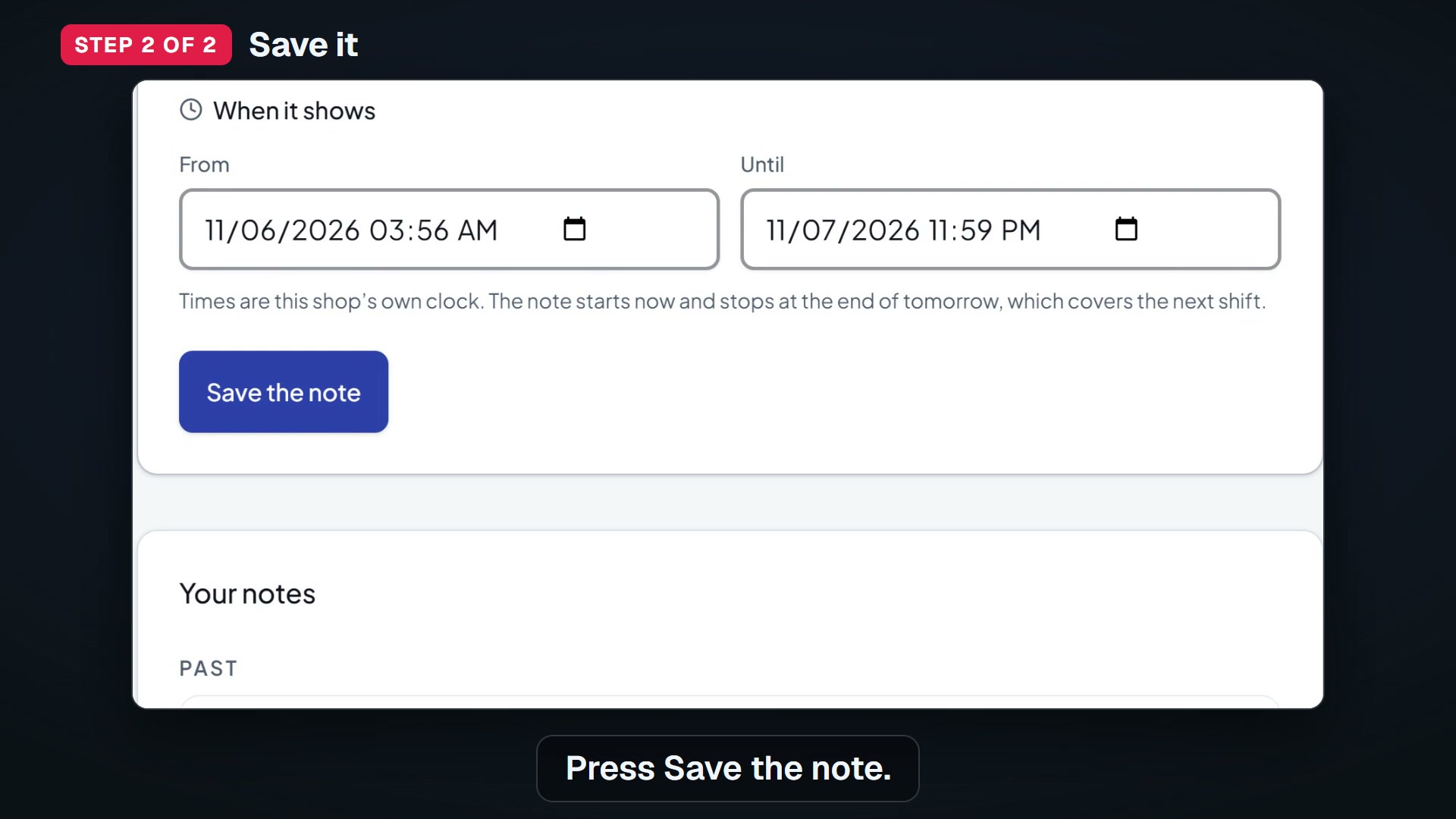
Watch “Shift notes: a message for the next shift” on YouTube
How to use it
- Who sees a note depends on who signs in. Staff and a locked counter tablet get a pop-up, Notes for this shift, once per sign-in. It never opens over a screen they asked for by name.
- Everyone, in Manager and in Counter mode, also sees the note pinned at the very top of Today, above “Good morning” and above everything else. Each is a yellow sticky-note card, headed Shift note, with who it is from (the role: Owner, Manager or Counter, never a name), when it was posted and the text. If several notes are on, they stack, the newest first, with one Got it and one All notes under the whole stack. There is no second note card lower down on Today.
- On a wide screen the note also sits under its day on the month calendar. On a phone, Today has no calendar, so open Shift notes to see every note.
- Open Shift notes from Counter. It opens in a panel beside Today. Staff can also press Add a note for this shift on their sign-in pop-up.
- A month calendar sits at the top. A dot marks each day with a note, and the line above it says how many notes are waiting.
- Tap a day to read its notes and their hours. Days follow your shop’s time zone, so a 9 pm note sits on the evening you meant.
- Pick who it is for: Opening shift, Midday shift, Closing shift, or Everyone. The name shows on the note so the reader knows it is theirs.
- Write the note. Up to 500 characters.
- Set From and Until. They start at the current time and end at the end of tomorrow, which covers the next shift. Change them for a note about Thursday’s delivery.
- Press Save the note.
- Between those two times, the note shows first to whoever signs in: as a pop-up for staff and a locked tablet, as a card at the top of Today for you and your managers.
- Read it and press Got it. Before its From time, the note is on the calendar and in the Shift notes list, but not on Today.
- Got it folds the note for this visit only. Tap the folded line to open it again.
- A note goes off by itself when its Until time passes, on your shop’s clock, not the device’s. You can also end it early with End this note now on its card: you and your managers can end any note, and staff only a note a counter wrote. KANJIN enforces that itself: a counter session cannot end or change anyone else’s note, whatever it presses. The end is saved as a change, so History shows who ended it and when (the role at the counter, never a name).
- The bell at the top of the screen lists the notes that are on now, and its number counts the ones you have not pressed Got it on this visit.
- While a note is inside its hours, it shows again at every sign-in: as the pop-up for staff and a locked tablet, as the card on Today for you and your managers.
- The screen ends with Give a stamp, which opens the stamp card. Nothing is sold to you there.
What it does
- From 5 November 2026 a note written or changed on one device reaches the others that are already open, without anybody reloading: a tablet at the counter shows a note the manager has just written within a moment, and a note deleted or restored somewhere else follows too. It is a short ping from KANJIN that tells the screen to read the notes once, when you reopen the tab, and when the connection comes back; nothing checks on a timer. A note you are in the middle of typing on this device is never painted over.
- Dates are your shop’s, not your laptop’s, from 25 October 2026. A day logged at five past midnight, or from another country, carries the date it is AT THE SHOP — the same clock the stamp counts and the timed emails already used. If you have not picked a city in Settings yet, it falls back to the device you are typing on.
- This screen is in your shop’s language, from October 2026 — the form, the shift names, the times, and the pop-up your staff see when they sign in. Set the back-office language under Settings.
- Times are your shop’s local time, as you set it in Settings, so a note for 6 pm means your 6 pm on every device.
- A note stays folded for the rest of the visit once somebody presses Got it, and reloading the page keeps it folded. Closing the browser and signing in again opens it, because a note inside its hours is for the shift that is starting. A new note from a colleague, or a note whose hours begin later in the day, opens too.
- Whose day it is: the shop’s, from 5 November 2026. A note’s hours are read against the clock at your shop and not the clock on the device in front of you. Until that date a Canadian shop’s note for today vanished from a tablet whose own date had already turned over somewhere else — the note was correct and the device was simply in another country. If you have not picked a city in Settings yet, the device’s own clock is still all there is.
- The screen lists your notes in three groups: Showing now, Coming up, and Past. The bin icon takes a note off the board.
- From 31 October 2026 every note says who wrote it and when it was posted, and deleting one does not erase it. The bin takes the note off the board and off the calendar; it stays under History, struck through, with the name of whoever deleted it. Press History on any note to read every change it has had: who changed it, when, and the words it said before. Nobody who signs in at your shop can remove that record — not counter staff, not a manager, and not you. It is there so a wrong instruction can be traced back.
- What it says depends on who wrote it. At a locked counter the person types their name, so the note says that name. From your own account it says your role — Owner, or Manager — because you did not type anything. The role is the one you held when you wrote the note: if somebody is made an owner later, their old notes still say what they were at the time. A handful of notes written before 31 October 2026 say “author not recorded”, because nothing was kept for them.
- On a locked counter tablet the screen asks for a name or initials before a note is saved or deleted. A shared tablet is one login, so the login cannot say which of three people is holding it. On your own laptop or phone it does not ask: you are already signed in as yourself.
- Owners and managers can delete any note. A locked counter tablet can delete only notes written at the counter, never a manager’s instruction, and only an owner or a manager can put a deleted note back.
- Notes are on your account, not on one tablet. Write one on the laptop at home and the tablet at the counter shows it to whoever opens tomorrow.
- Everyone who works at the shop can read and write notes, including counter staff. That is the point of them. Your costs, takings and supplier invoices are a different matter: counter staff never see those.
- From 30 October 2026, one more thing can sit at the top of the notes screen on a locked tablet, above the note you write: a button, Log a supplier invoice, that opens a short form, if you have ticked Let staff log supplier invoices in Settings. From 31 October 2026 the same form also has a row of its own, Supplier invoices, under Counter tools. It is the only way staff touch an invoice. They can add one, and add a supplier by name, and they see only what that tablet entered in the last 12 hours. They still cannot see your invoices, change or delete a supplier, or mark anything paid. Without the tick box nothing appears here, to staff or to you.
- Notes written before this change kept their text and are listed under Past.
PaidWhat the paid plan changes here
Nothing changes on this screen. On the paid plan, the Slow & rainy days screen writes an offer for a wet day, for the regulars who agreed to hear from you. You press Send.
What it costsRelated screens
Sales & costs
FreeEnter today’s register total and each supplier receipt to see what you really keep. Type the two as they happen: what a delivery cost, and what the register took. That is all the daily report needs.
Lost revenue
FreeWhat your slow weekdays and rainy days cost you in a year, counted from your own stamp card and the number of rainy days you tell us you get. Then the one thing that wins some of it back: the slow-day email on the paid plan.
Win-back, birthdays, referrals
PaidShort emails KANJIN can send for you: to a regular who stopped coming, to somebody whose reward is waiting, to somebody who is nearly there, a welcome to a new customer, and a birthday email. The two about a customer’s own card — nearly there, and a reward waiting — run by themselves on the paid plan, because a shop that is paying for them has already said yes; switch them off on the same row if you would rather they did not. The rest are off until you turn them on.